 House of Rionysus
DGen Studio docs
The body
The inspector, in the top left corner, shows the thing you selected and its controls, one row each.
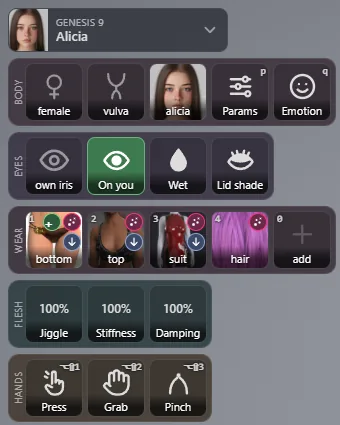
At its top, the selected thing: its picture, its kind (GENESIS 9, OBJECT) and its name. Click it for a list of everything in the scene: each body, then the object. A click on a body or on the object on the stage selects it too. In a scene with two bodies, each body has its own rows: select one to set it up.
A small square with a value (a % or a number) works the same everywhere: drag it up or down to change it, click it for its slider, double click it to put its default back. Its value turns amber when it is off its default.
Body
- Female or male: the sex of the body. Click it and pick Female or Male: the body is built again at that end. Genesis 9 is one body with a slider from feminine to masculine; the slider itself, feminine to masculine, is the first one of Params, so any point in between is yours. The tile says between when the slider sits off both ends. The skin and the default hair follow the body's sex.
- The anatomy: none, or an anatomy product of your library (Golden Palace for a vulva, Dicktator for a penis), on any body. An anatomy your library lacks is greyed, with a link to its store page. A pick builds the body again.
- The character: default (plain Genesis 9) and every adult Genesis 9 character of your libraries, female, then male, each with Daz's own picture. Starter Essentials gives you its free characters. A pick builds the body again as that character: its shape, its skin, its eyes and mouth. Packs of head and body shapes show their heads after the characters; pick a head and a Body shape tile appears beside it to pick the body it sits on.
- Params (P): Daz's own sliders for the body, by group. See below.
- Emotion (Q): faces, one click each. See below.
DGen never offers a character made young. A character whose name or product says young, teen, child or kid is left out, whatever its pack.
Params
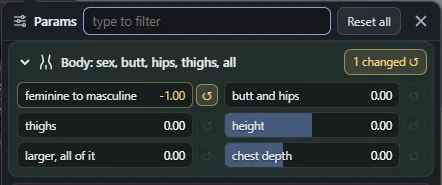
The sliders of the body's shape, in groups: Body (sex, butt and hips, thighs, height, chest depth, larger), Breasts (size and volume, shape, position, smoothers), Nipples, the anatomy's own dials, Emotion and Face. They are Daz's own morphs, read from your library, and they change the body live as you drag.
- Type in the filter to find a slider. The down arrow goes to the first one kept.
- Each group shows how many sliders you changed; its reset puts them back. Reset all resets every slider.
- On a slider: drag it, or click it and type a value, then Enter. The arrow keys step it.
- A group whose Daz product your library lacks is greyed, with a small lock and a link to get it. Breast Control gives the breast groups.
Emotion
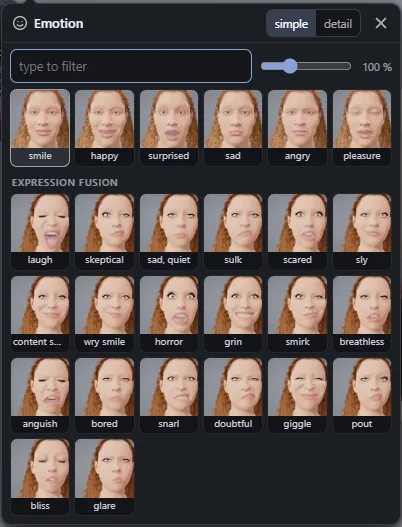
A face in one click: smile, happy, surprised, sad, angry, pleasure, and with Expression Fusion many more (laugh, skeptical, sulk, grin, smirk, pout...). simple picks one face at a time; detail gives each face its own slider, so faces mix. Type to filter, the arrow keys move, Enter picks. The slider beside the filter sets the size of the pictures.
Eyes
- The iris: the iris colour, with its picture. own iris is the one the skin comes with; the others are Daz's irises of your library.
- On you: the eyes follow the camera. Off, they rest.
- Wet: the eyes' clear glossy shells, the cornea and the tear line. Off is a little faster.
- Lid shade: the lashes shade the white of the eyes, and the lids the tear line.
Wear
What the body wears, one tile per piece in layer order, innermost first, then +.
- Click a tile (or press its digit, 1 to 9) for the clothes list: a grid of cards with Daz's pictures, in sections (Hair, Tops, Full body, Bottoms, Outerwear, Innerwear, Feet, Hands, Head, Accessories, Outfits), and a chip per section to jump to it. A pick replaces that piece.
- + (0) adds a piece over the others. A new piece replaces the ones it would cover.
- Colours: a card has a colour circle per colour. Rest the pointer on a circle of a piece the body wears and, after a short pause, the piece takes that colour on the body; move away and the old colour comes back; click to keep it.
- Off for now: the small button in a tile's corner (or Shift and its digit) takes the piece off with a dissolve and puts it back; the button under it pulls it off.
- Remove: the small cross in a tile's corner takes the piece off and out of the list.
- Hair is a piece like the others. The default hair follows the body's sex, the first one your library holds.
Type in the filter to find a piece by its name, its product or its colour (red keeps the red ones). The slider beside the filter sets the size of the cards.
Flesh
How the body's flesh and skeleton feel, live while the body moves. Your presets keep them.
| Square | What it does | Range |
|---|---|---|
| Jiggle | How the fat moves: lower is firmer and calmer, higher is softer and bouncier and swings longer. | 0 % to 300 %, 100 % the default |
| Stiffness | How hard the skeleton holds its pose: lower is looser (a grab carries the body further, it goes back slower), higher is firmer. | 50 % to 200 %, 100 % the default |
| Damping | How a bone you let go of goes back to its pose: 100 % goes straight back with no swing, lower swings past it, higher creeps back. | 25 % to 400 %, 100 % the default |
Hands
The body's own hands: Press (Alt Shift 1), Grab (Alt Shift 2) and Pinch (Alt Shift 3). Pick one, then drag on the body: the body reaches with its nearer free hand and does it to itself. See Tools.
The object
Select OBJECT in the inspector's list for a solid that moves along a path and pushes the flesh where it touches: Off, Cube, Sphere or Cone. While one is on:
- Size: the cube's edge, the sphere's diameter, the cone's height and base.
- Mass: heavier, it gets to its points slower.
- Force: the most its drive pushes toward its next point.
- PATH: its points on the clip's time,
x,y,z@tsplit by;(x, y, z its centre in metres in the body's frame: x the body's left, y up, z its front; t the clip's time in seconds). It moves toward the latest point whose time has passed. Enter applies, Esc reverts.