 House of Rionysus
DGen Studio docs
Updates
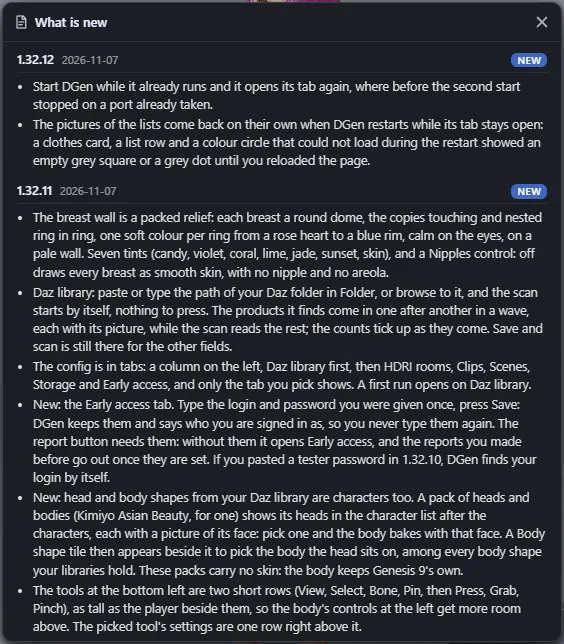
What is new
Notes, in the scene bar's right column, opens the release notes: every version, newest first, what is new or fixed in it. The versions you have not seen yet are marked NEW, and the Notes button shows a dot until you open it. The sheet's head names the version you run.
Update with one click
When a newer version is out, the Notes button shows its dot and the Notes sheet opens with an Update to <version> block at its top: what is new since your version, and one button, Update and restart.
- DGen downloads the new version in the background, before you click, so the click is quick.
- Click Update and restart. DGen replaces its own program, starts again on the new version, and your tab reloads on the same view.
Nothing installs without your click, and you can wait as long as you like: the dot stays until you update.
To get updates, DGen needs your early access login (the Early access tab of the config). Without it, DGen does not look for updates.
It is safe
Each update is signed by us. DGen checks the signature, the size and the checksum of what it downloads, and that the new program answers with the right version, before it replaces anything. If any check fails, it refuses the update and says why in the Notes sheet.
DGen looks for a new version when it starts, every 6 hours, and when you open the Notes sheet.
On Windows, after an update, DGen runs in a new console window: close that window to stop it.
Older versions
The updater came with version 1.32.11. If you run 1.32.11 or older, install the next version once by hand from the zip we send you; every version after that updates itself. To see your version, open Notes, or run dgen --version (see Command line).