 House of Rionysus
DGen Studio docs
First run and the config
The first time you run DGen, the studio opens with its config popup on the Daz library tab. You need to do one thing there: tell DGen where your Daz library is.
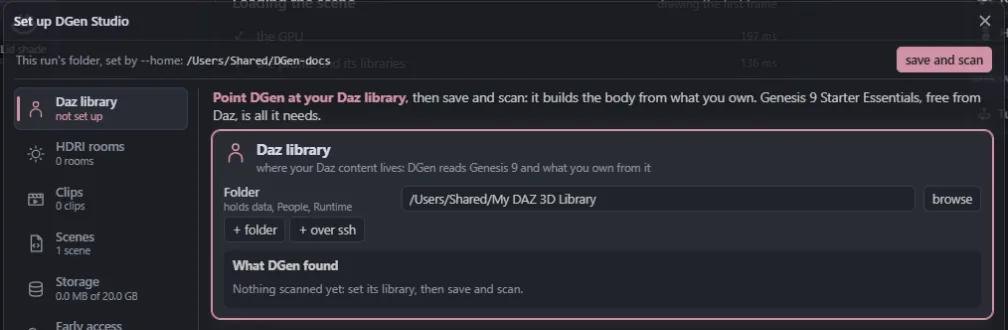
The first run in three steps
- Point DGen at your Daz library. In Folder, paste or type the path of your Daz library (the folder that holds
data,PeopleandRuntime), or click browse to pick it. DGen fills in the folder Daz Studio installs to when it finds one. - The scan starts by itself once the path is a Daz library. The products DGen finds come in one after another, each with its picture, while the scan reads the rest. A library with only Starter Essentials takes a few seconds.
- Click load the body, or close the popup. DGen builds the body from what you own and the studio shows it. The first build of a body takes a little longer; after that it comes from the cache.
If the scan does not find Genesis 9 Starter Essentials, it says so with a link to its free download. Install it, then scan again with save and scan.
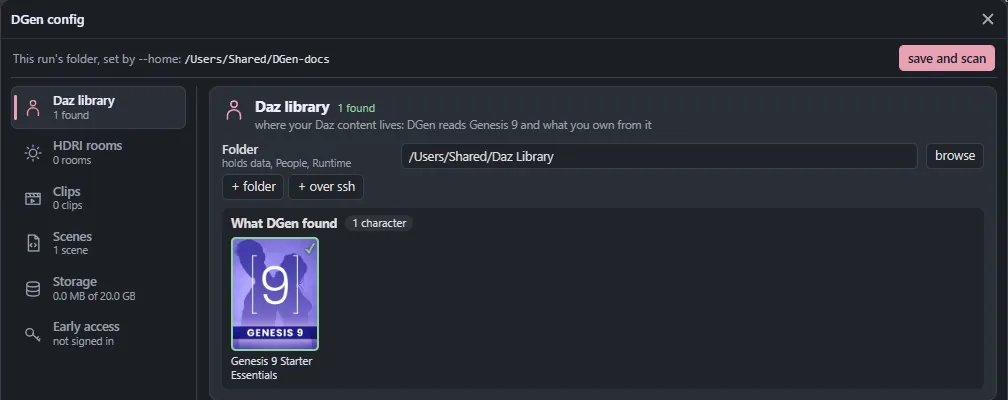
Open the config later
Click your profile's button at the top, right of the scene bar, or press Ctrl , (⌘ , on a Mac). The popup opens on the tab you used last.
At the top of the popup: your profiles as round avatars (see Profiles), then save and scan. save and scan saves the fields of every tab at once and scans your libraries again.
On the left, the tabs. Under each one, a short state: how many products, rooms or clips it found, how full the cache is, whether you are signed in.
Daz library
Your Daz content folders, in order, as Daz Studio's content directories. A file is read from the first folder that holds it.
- Folder: a Daz library on this computer, or on a mounted network share (
\\nas\daz,/Volumes/daz). DGen reads it in place and never writes in it. - + folder adds another library folder.
- + over ssh adds a library on another computer that you reach with ssh (advanced, see below).
- What DGen found: every product of your libraries as a tile with Daz's own picture, the products DGen uses first, marked. Chips count them by kind (characters, hair, clothing, figures, morphs, poses, materials). The scan's details are under its details toggle.
DGen uses what you own. With Starter Essentials alone you get plain Genesis 9: its own skin, its free characters, its free hair and clothes. A product that DGen knows (an anatomy, a character, a hair, Breast Control, Expression Fusion) turns on by itself once your library holds it. DGen never lists what you do not own here: a scene that would use a product you lack says so itself, under its name (see Scenes and presets).
A library on another computer (over ssh)
If your Daz library lives on another machine (a desktop, a NAS) that you reach with ssh, add it with + over ssh:
- Host: the host's name as your ssh config knows it (
ssh <host>must work with no password prompt, with a key). - Library folder there: the library's path on that host. A Windows drive letter works (
D:/Daz Library). - Index there: the path, on that host, of an index of that library that DGen built there. DGen must have run once on that host with that library; its default is
.dgen/cache/index.json. - check probes the three over ssh.
DGen copies each file it needs from that host once, into its cache, and copies it again only when it changed. Every transfer goes over one warm connection.
HDRI rooms
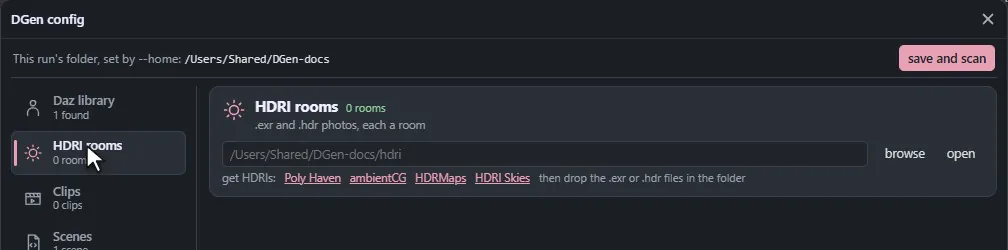
An HDRI is a 360 degree photo of a place. Each .hdr or .exr file in this folder is a room of the studio: the photo is around the body and its light lights it. Two rooms come with DGen (Brown studio and Fireplace, from Poly Haven).
- open makes the folder if needed and shows it in your file manager.
- The links lead to free HDRI sites: Poly Haven, ambientCG, HDRMaps and HDRI Skies. Download a file and drop it in the folder.
- Back in the studio, the new room is in the room list at once, no reload. Its first pick takes a moment while DGen prepares it.
Clips (Mixamo)
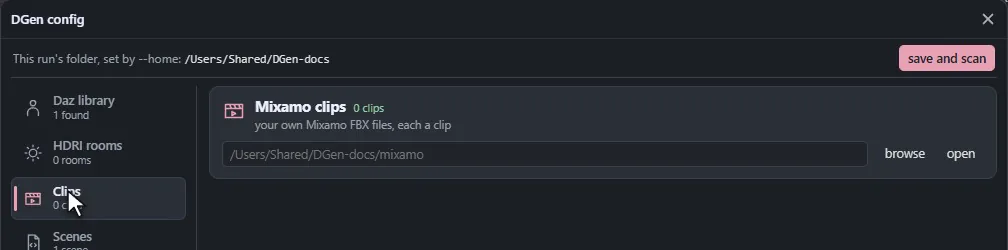
DGen comes with five free motion capture clips. You can add your own from Mixamo, Adobe's free animation library:
- Sign in to mixamo.com with your own Adobe account.
- Pick an animation and download it as FBX.
- Drop the
.fbxfile in this folder (open shows it).
Each file is a clip named mixamo-<file name> in the studio's clip list. DGen moves it onto the Genesis 9 skeleton the first time you play it. We never ship Mixamo clips: you download your own.
Scenes
The folder of your own scene files. Each .ts file there is a scene of the studio's scene list. DGen also writes the types and a guide for writing scenes into it. See Writing scenes.
Storage
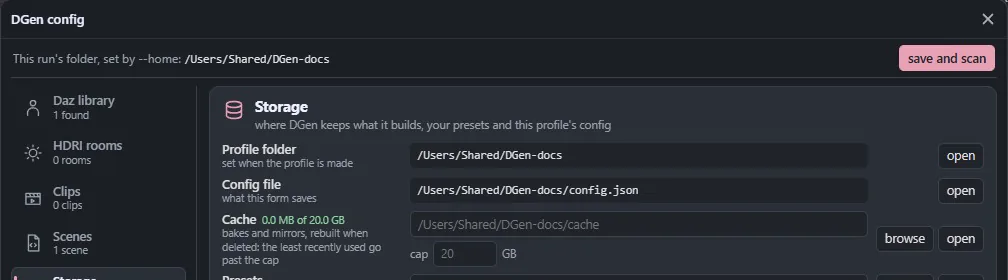
Where DGen keeps what it builds and what you save, for this profile:
| Row | What it holds |
|---|---|
| Profile folder | Everything of this profile. Set when the profile is made. |
| Config file | config.json: what this popup saves. |
| Cache | What DGen builds from your library (bodies, clips, clothes, hair, maps, rooms) and copies from an ssh library. All of it is built again when deleted. |
| Presets | Your scene presets and their pictures. |
The cache has a cap, 20 GB by default. Past it, DGen deletes what you used least recently, never what is in use. Type another cap in cap and save: it applies at once. The row shows how much is used. The cache is big, so you can move it to another disk with browse. A new cache or presets folder restarts DGen on it.
Early access
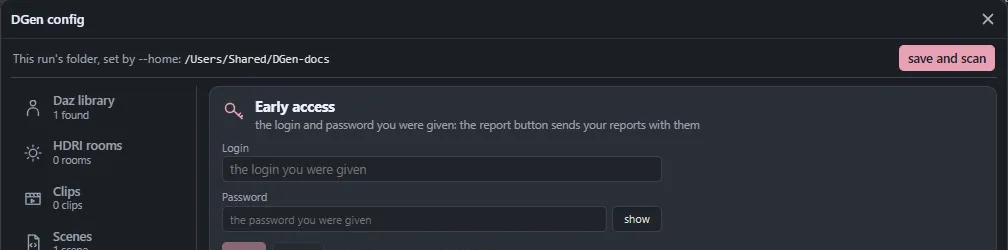
The login and password you were given with the beta. Type them once and press Save: DGen keeps them in this profile's config.json and says who you are signed in as. Check asks again. show shows the password.
You need them for two things: sending reports, and updates. DGen never puts them in a preset, a link, a log or a report.