 House of Rionysus
DGen Studio docs
Tools
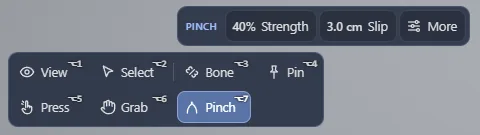
The tools box sits in the bottom left corner: View and Select, then Bone and Pin for the skeleton, then Press, Grab and Pinch for your pointer. One tool is in force at a time, lit. Its settings show in a small box beside it; More opens the rest.
In every tool, a drag off the body turns the camera, so you never need to switch back to View to look around.
What you hold
Press, Grab and Pinch keep what they hold when you let go of the button: a dent stays, a grab stays held. Hold more than one at a time: drag again for another. Then:
- + pushes the held one 1 cm in, - 1 cm out. The wheel does the same while you drag.
- G lets go of everything.
- R resets the pose.
What you hold is listed at the bottom of the stage. Esc goes back to View; what is held stays held.
Bone and Pin
A Genesis 9 body has a physical skeleton: the clip pulls each bone toward its pose, and the body resists you as a real body would. Bone pulls a bone and lets it go back. Pin leaves it where you put it, the clip playing against it. Their setting Hold pose keeps every bone where you let it go: the clip no longer pulls the skeleton. Off, the body eases back onto its clip.
Grab a hand and lift it: the arm comes with it and stays in your grip; its fingers close around your hand. Let go and the arm lowers back to its pose.
The tools
The tools box in the bottom left corner. The tool you pick decides what a drag on the stage does.
View Alt 1 or Esc
Look around; what is held stays held (Esc too).
- With a mouse: Drag: turn. Wheel: zoom. Right or shift drag: pan. Double click: frame.
- On a touch screen: Drag: turn. Two fingers: zoom and pan. Double tap: frame.
Select Alt 2
Pick the body the controls and the Genesis 9 bar act on.
- With a mouse: Press on a body: it is selected. Drag: turn.
- On a touch screen: Tap a body: it is selected. Drag: turn.
Bone Alt 3
Move bone: pull a bone, the body resists; it goes back, or with Hold pose it stays.
- With a mouse: Drag on the body: the bone under it follows by a spring, the body resists; let go and it goes back, or with Hold pose on it stays. Drag off the body: turn.
- On a touch screen: Drag on the body: the bone follows, the body resists; lift and it goes back, or with Hold pose it stays.
| Setting | What it does | Range | Default |
|---|---|---|---|
| Hold pose | A bone stays where you let it go, the clip no longer pulls the skeleton; off, the body eases back onto its clip. | on or off | off |
Pin Alt 4
Pull a bone and leave it pinned there.
- With a mouse: Drag on the body: the bone under it follows and stays pinned where you let go; the clip plays against it. Drag off the body: turn.
- On a touch screen: Drag on the body: the bone follows and stays pinned where you lift.
| Setting | What it does | Range | Default |
|---|---|---|---|
| Hold pose | A bone stays where you let it go, the clip no longer pulls the skeleton; off, the body eases back onto its clip. | on or off | off |
Press Alt 5
Your pointer is a fingertip: it dents the flesh where you press.
- With a mouse: Drag on the body: the fingertip presses into the skin there and slides on it; it stays. Wheel: deeper or out. Drag off the body: turn.
- On a touch screen: Drag on the body: the fingertip dents and slides on the skin; it stays. Off the body: turn.
| Setting | What it does | Range | Default |
|---|---|---|---|
| Depth | How far past the skin the fingertip goes. | 0.5 cm to 4.0 cm | 1.5 cm |
| Deepest (More) | In, Out and the wheel stop the fingertip this deep. | 1.0 cm to 8.0 cm | 5.0 cm |
| Size (More) | The dent's radius over the surface's spacing (less slips between its points). | 1.00× to 3.00× | 1.25× |
Grab Alt 6
Your pointer is a palm: it holds the flesh and pulls.
- With a mouse: Drag on the body: a palm holds the flesh and pulls; it stays held. Again: a second palm. Wheel: push. Drag off the body: turn.
- On a touch screen: Drag on the body: a palm holds and pulls; it stays. Off the body: turn.
| Setting | What it does | Range | Default |
|---|---|---|---|
| Strength | The palm's pull on the skin it holds. | 10% to 100% | 60% |
| Slip | The palm lets go once pulled this far from where it took hold. | 2.0 cm to 20.0 cm | 8.0 cm |
| Size (More) | The palm's patch radius. | 2.0 cm to 8.0 cm | 5.0 cm |
| Carry (More) | The share of the pull that moves the body's bone: 0 pulls the flesh alone, more pulls the arm or leg along. | 0% to 100% | 100% |
Pinch Alt 7
Your pointer pinches the flesh between two fingers.
- With a mouse: Drag on the body: two fingers pinch the flesh and pull; it stays held. Wheel: push. Drag off the body: turn.
- On a touch screen: Drag on the body: two fingers pinch and pull; it stays. Off the body: turn.
| Setting | What it does | Range | Default |
|---|---|---|---|
| Strength | The fingers' pull on the skin they hold. | 10% to 100% | 40% |
| Slip | The fingers let go once pulled this far from where they took hold. | 1.0 cm to 10.0 cm | 3.0 cm |
| Size (More) | The fingers' patch radius. | 1.0 cm to 4.0 cm | 1.8 cm |
| Carry (More) | The share of the pull that moves the body's bone: 0 pulls the flesh alone, more pulls the arm or leg along. | 0% to 100% | 100% |
The body's own hands
The HANDS row of the inspector. The selected body uses its own hands: it reaches with the nearer free hand and holds what you point at.
Press Alt Shift 1
The nearer hand reaches and its fingertip presses the skin.
- With a mouse: Drag on the body: the nearer fingertip presses there, 2 cm into the skin, and slides on it; it stays. Wheel: deeper or out. Drag off the body: turn.
- On a touch screen: Drag on the body: the nearer fingertip presses and follows; it stays.
Grab Alt Shift 2
A hand cups the skin with its palm and pulls.
- With a mouse: Drag on the body: the nearer free hand cups the skin and pulls; it stays held, and slips past 12 cm. Again: the other hand. Wheel: push. Drag off the body: turn.
- On a touch screen: Drag on the body: a hand cups and pulls; it stays. Again: the other hand.
Pinch Alt Shift 3
A hand pinches the skin between thumb and index.
- With a mouse: Drag on the body: the nearer free hand pinches the skin and pulls; it stays held, and slips past 4 cm. Again: the other hand. Wheel: push. Drag off the body: turn.
- On a touch screen: Drag on the body: thumb and index pinch and pull; it stays.